Cluster members
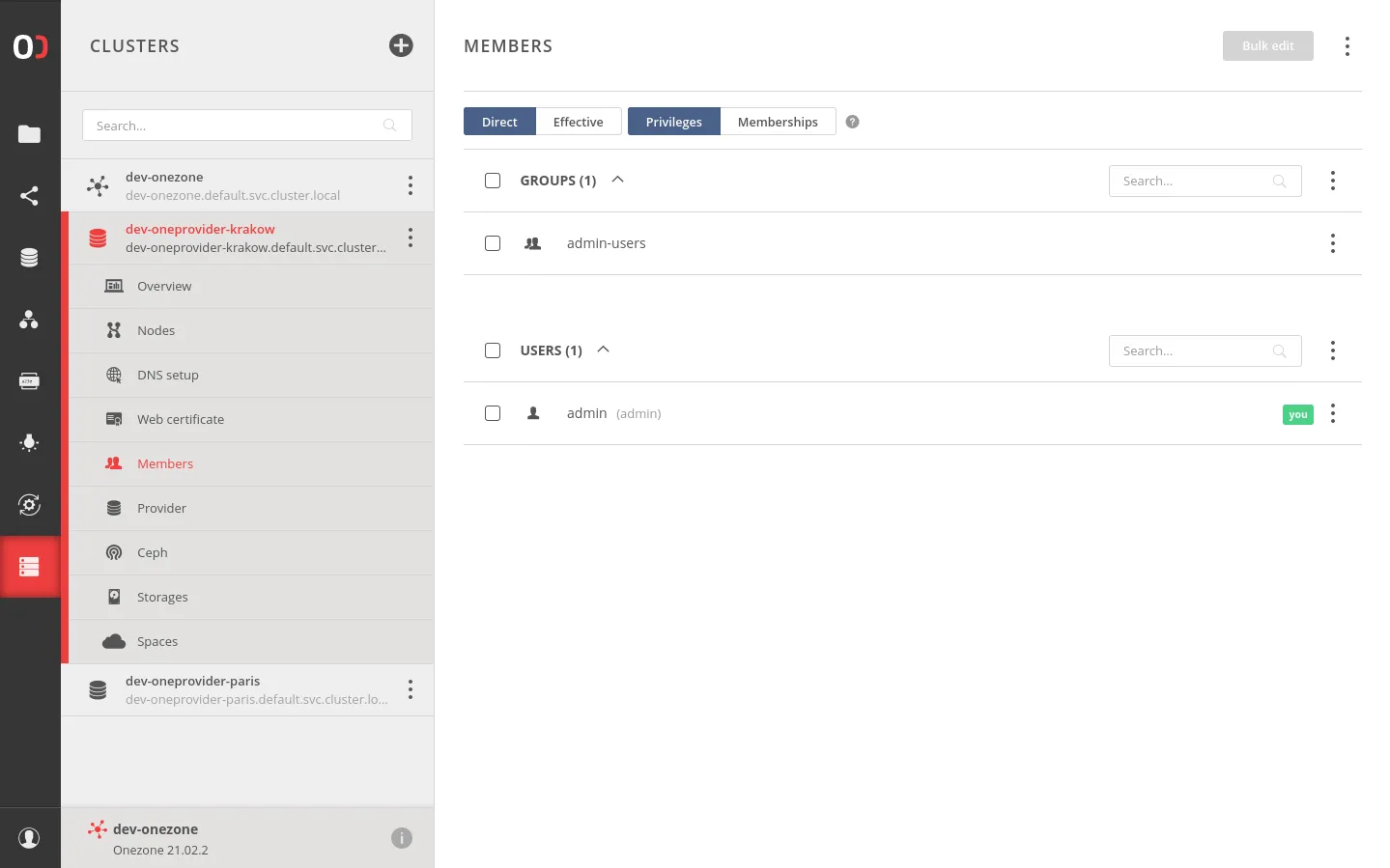
Access to the view and settings of the Oneprovider cluster (administration panel) is controlled through the members mechanism. It consists of a list of users and groups to which specific cluster management privileges are assigned. Users who are not direct members or do not belong to member groups do not have access to the cluster.
An exception is access to the administration panel through the emergency interface. In this case, access to cluster resources is granted by providing a special emergency password. Read more here.
You can find the members settings by clicking Members in the submenu of a specific cluster.
Adding new members
To grant access to the cluster to new users, you have two options — inviting users directly or adding an entire user group.
Inviting users
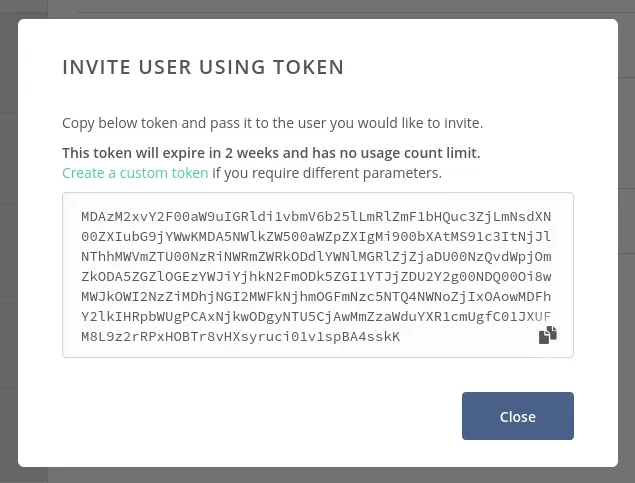
To add a new user to the cluster, open the user list actions menu and choose Invite user using token.

Then, copy the generated token and send it to the user you want to grant access to the cluster. Once the user receives the token, they should consume it using the dedicated view.
Adding user groups
To add an entire user group to the cluster, open the groups list actions menu and choose one of the available options.
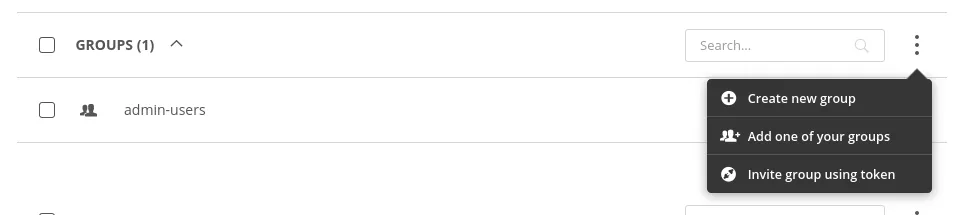
These options allow you to:
- Create a new empty user group. To grant access to users, you will need to invite them to the newly created group.
- Add an existing group from those you have access to.
- Invite a group using a token. This mechanism is similar to inviting users, with the difference that you need to pass the token to the administrator of the invited group.
Adding a user group means that users in subgroups of that group will also gain access to the cluster. Therefore, try to invite only groups that consist solely of users who are genuinely authorized to manage the cluster or create a new group and invite selected users to it. This will provide better control over access and privileges.
Reviewing existing members
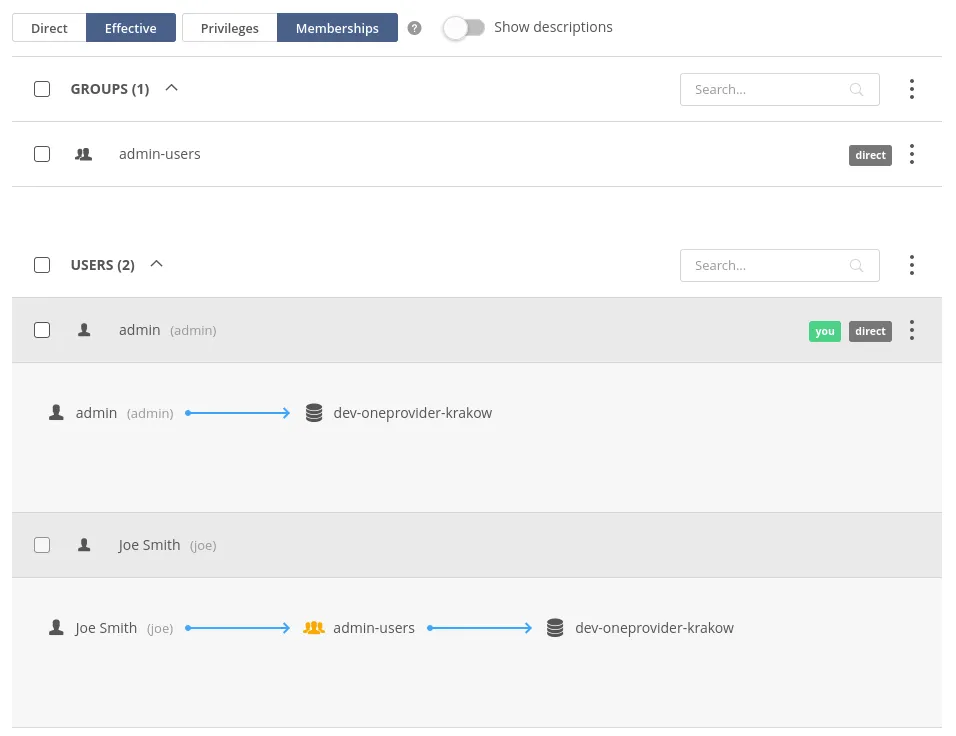
Cluster members can be viewed in two modes — direct and effective. The direct view shows only those members who have been directly added to the cluster — either through token invitation or group membership. The effective view, on the other hand, shows all members who have access to the cluster. It differs from the set of direct members by including additional groups and users who are members of direct groups.
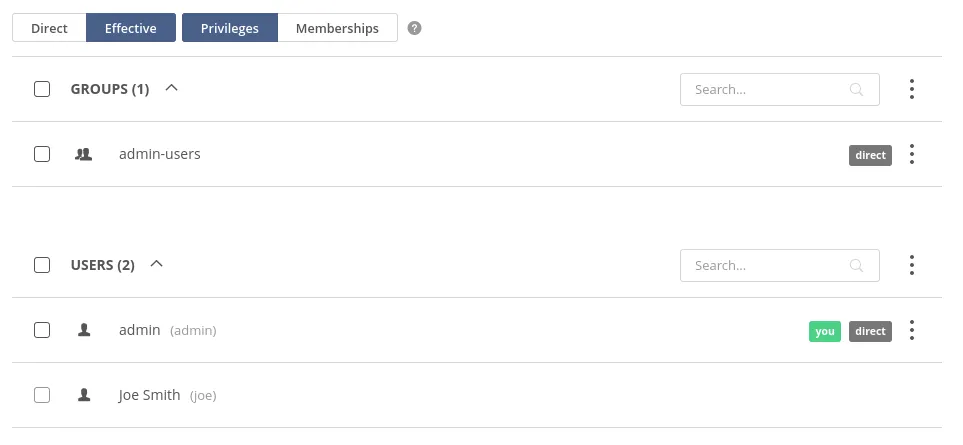
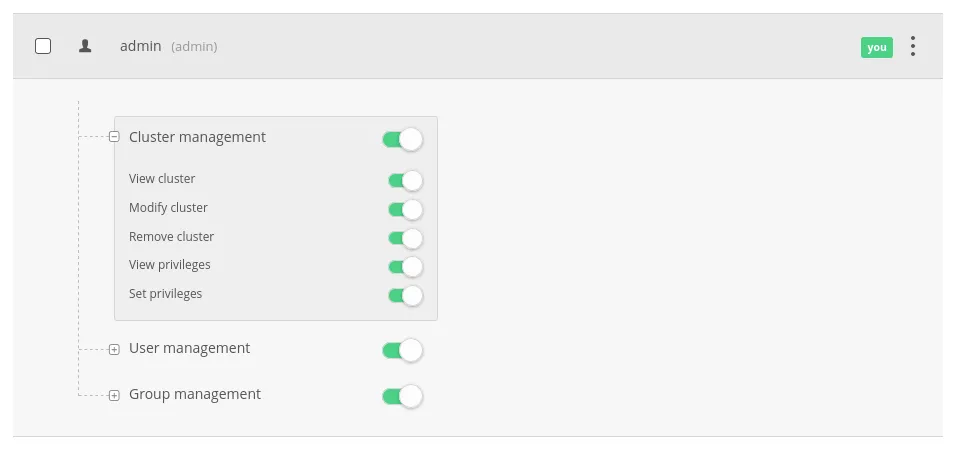
By expanding each entry in the list of members, you can view their privileges. In the direct view, only privileges granted during the member addition process are displayed (and editable), while in the effective view, calculated privileges resulting from the privileges of intermediate groups are shown (read-only).
Furthermore, by changing the view aspect to Memberships, you can also see how a particular member is in a membership relation with the cluster. This helps in finding information about through which group a user became a member of the cluster.
Removing members
To remove a cluster member, open the member’s actions menu and choose Remove this member.
It is not possible to remove a member who is only an effective member of the cluster. To revoke their access, you need to remove the group to which they belong. You can find help in identifying that group through the membership information.
Changing member privileges
To change privileges, you need to use the direct members view.
To change privileges, expand the entry corresponding to the specific user or group, toggle the desired privileges, and save the changes by clicking the Save button.
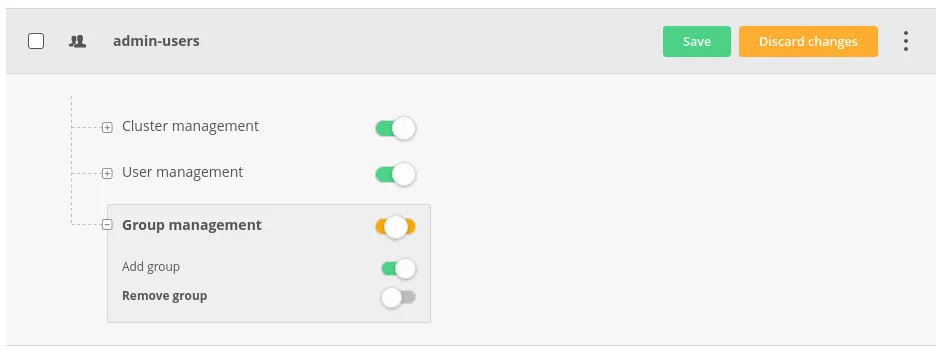
Remember that changing privileges for a group means changing them for all users within that group.
Full list of privileges:
| Privilege name | REST API representation | Description |
|---|---|---|
| View cluster | cluster_view | User can see cluster and enter its administration panel |
| Modify cluster | cluster_update | User can adjust cluster settings |
| Remove cluster | cluster_delete | User can remove cluster from Onezone |
| View privileges | cluster_view_privileges | User can view members’ privileges |
| Set privileges | cluster_set_privileges | User can modify members’ privileges |
| Add user | cluster_add_user | User can invite new users to the cluster |
| Remove user | cluster_remove_user | User can remove users from the cluster |
| Add group | cluster_add_group | User can add new groups to the cluster |
| Remove group | cluster_remove_group | User can remove groups from the cluster |
Managing members from the emergency administration interface
If, for some reason, you don’t have access to the administration interface through Onezone but have the emergency passphrase for the cluster, you can partially configure members from the emergency administration interface. To do this, go to the emergency interface (read more here) and navigate to the Members submenu of your cluster.
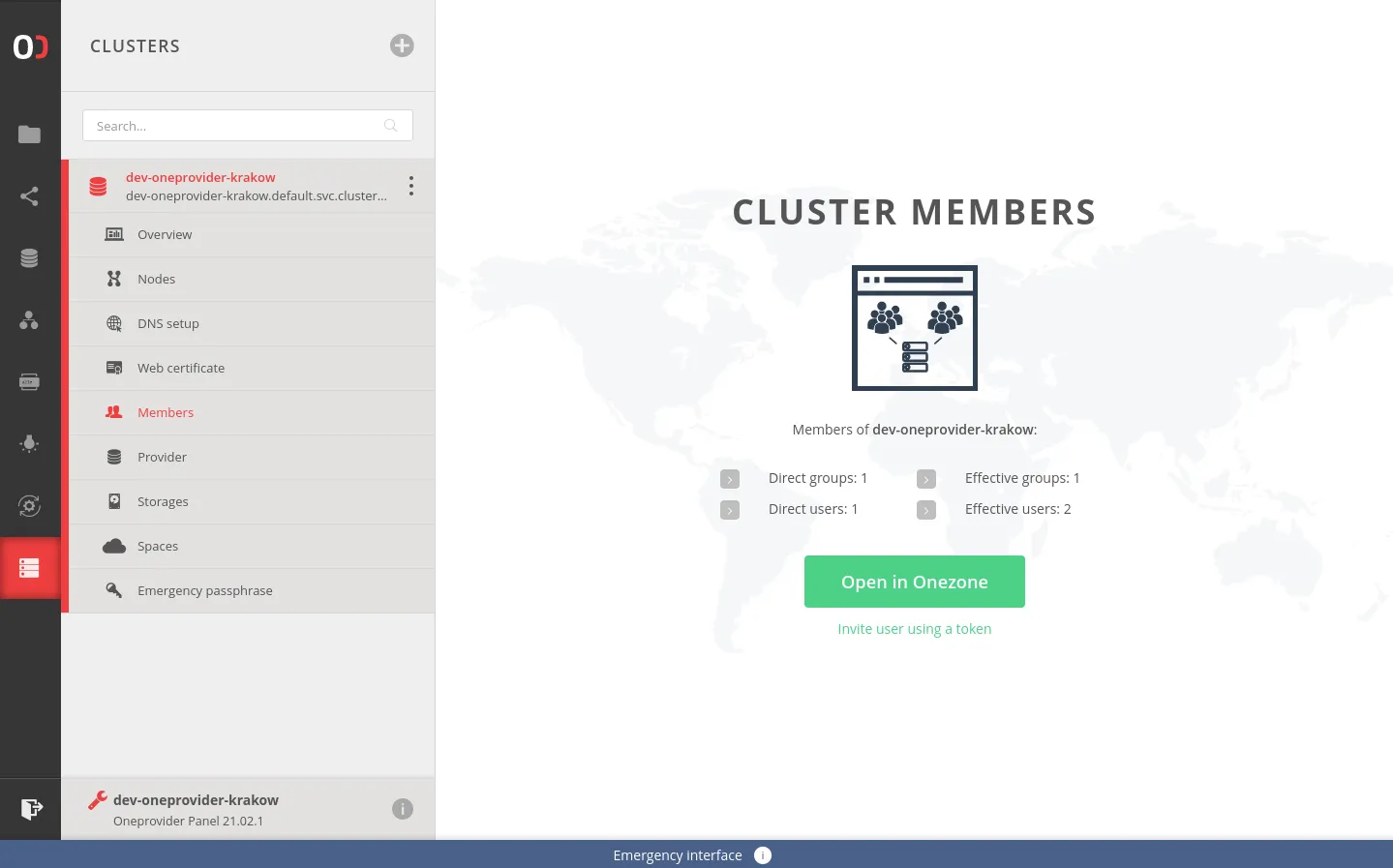
Here, you can see the current number of members and generate an inviting token to the cluster (by clicking Invite user using a token). When consumed by a user, this token grants full privileges set to the cluster. It serves as a way to regain administrative access to the cluster in case of accidental loss.
Be cautious in sharing the token generated from the emergency administration interface. It grants full management privileges to the cluster, and if it falls into the wrong hands, it can lead to malicious configuration changes and data loss.
REST API
All operations related to the cluster members can be performed using the Onezone REST API. Refer to the linked API documentation for detailed information and examples.
| Request | Link to API |
|---|---|
| List cluster’s users | API |
| Add user to cluster | API |
| Remove user from cluster | API |
| List user’s cluster privileges | API |
| Update user’s cluster privileges | API |
| List cluster’s effective users | API |
| List effective user’s cluster privileges | API |
| List cluster’s groups | API |
| Add group to cluster | API |
| Remove group from cluster | API |
| List group’s cluster privileges | API |
| Update group’s cluster privileges | API |
| List cluster’s effective groups | API |
| List effective group’s cluster privileges | API |